

Spam texts are unsolicited messages sent to your mobile number, often containing phishing links or aggressive marketing. These messages clutter your inbox and pose a security risk if you interact with them. PhoneShield.ai provides a dedicated text filter that sorts these messages automatically, ensuring your iPhone inbox remains clean and secure. according to How to Stop
1. Use the Built-in Unknown and Spam Filter
Enable the native iOS filter to separate unknown senders from your main inbox. Apple includes a default filter that moves messages from numbers not in your contacts to a separate folder. This feature is available on iOS 13 and later. You can access it by going to Settings, tapping Messages, and selecting Unknown & Spam. This is the first line of defense for most users.
2. Block Specific Numbers Manually
Block individual senders to prevent future messages from that specific source. If a particular number sends you repeated unwanted messages, you can block it directly from the conversation thread. Tap the sender's name at the top of the message, scroll down, and select Block this Contact. This stops all future texts and calls from that number. It is effective for persistent scammers but requires manual effort for each new number.
3. Report the Message to Your Carrier
Reporting spam helps your carrier identify and block the source for all customers. Most carriers allow you to report a message by forwarding it to a specific short code. For example, AT&T and T-Mobile users can forward the message to 7726. This action flags the number as spam on the carrier's network. It helps protect other users but does not always stop the sender immediately.
4. Use a Third-Party Text Filter App
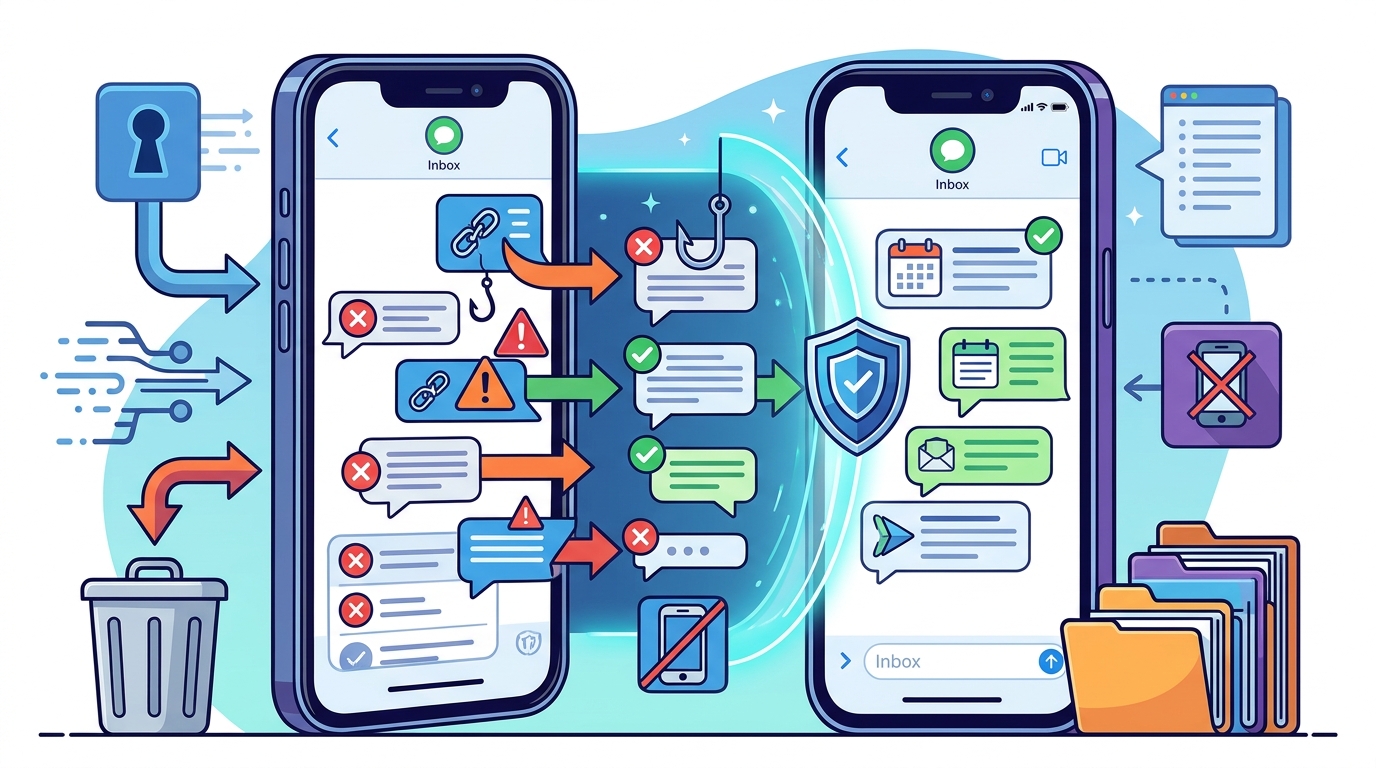
Install a specialized app to analyze and filter messages in real time. Third-party apps can integrate with your iPhone's messaging system to screen incoming texts. These apps use machine learning to detect patterns typical of scams or marketing blasts. PhoneShield.ai offers a text filter that sorts messages from unknown numbers into Spam, Transactions, or your main inbox. This automation saves time and reduces the risk of clicking malicious links.
5. Register Your Number on the National Do Not Call Registry
Add your number to the federal registry to reduce legitimate marketing calls and texts. The National Do Not Call Registry is a free service that asks telemarketers to stop contacting your number. While it primarily targets calls, it also helps reduce unwanted marketing texts. You can register your number online through the Federal Trade Commission. It takes 31 days for the registration to take effect, but it is a foundational step in protecting your privacy.
6. Disable SMS Forwarding to Other Devices
Turn off SMS forwarding to prevent spam from appearing on other linked devices. If you use iMessage or have SMS forwarding enabled for other Apple devices, spam texts may appear on those devices as well. You can disable this by going to Settings, tapping Messages, and turning off Text Message Forwarding. This ensures that spam is contained to your primary iPhone and does not clutter your iPad or Mac.
7. Use a Dedicated Scam Protection Service
Employ a comprehensive service that handles both calls and texts with AI screening. A dedicated service like PhoneShield.ai provides a layer of protection that goes beyond basic blocking. It uses a shared scam list and AI analysis to identify fraudulent messages before they reach your inbox. The service filters texts from unknown numbers, categorizing them as Spam, Transactions, or legitimate messages. This approach is ideal for users who want a hands-off solution to manage their communication security.
Choosing the Right Method
Select the method that matches your level of engagement. If you prefer a hands-off approach, a dedicated service like PhoneShield.ai is the most effective. If you want to manage your inbox manually, start with the built-in filter and report features. Combining these methods provides the strongest defense against spam texts.
Frequently Asked Questions
Does PhoneShield.ai filter texts on iPhone?
Yes, PhoneShield.ai includes a text filter for iPhone that sorts messages from unknown numbers into Spam, Transactions, or your main inbox.
How do I enable the Unknown and Spam filter on iPhone?
Go to Settings, tap Messages, and select Unknown & Spam. This moves messages from numbers not in your contacts to a separate folder.
Can I block spam texts from unknown numbers automatically?
Yes, you can use a third-party app like PhoneShield.ai to automatically filter and categorize texts from unknown numbers.
Does registering on the Do Not Call Registry stop all spam texts?
No, it reduces legitimate marketing texts but does not stop all spam, especially from scammers who ignore the registry.
Is PhoneShield.ai free?
PhoneShield.ai offers a subscription plan that includes text filtering and call screening. Check the pricing page for current details.
How does PhoneShield.ai decide where to put a text?
PhoneShield.ai uses a shared scam list and AI analysis to categorize texts. Scams go to Spam, codes and reminders go to Transactions, and unclear messages stay in your inbox.